

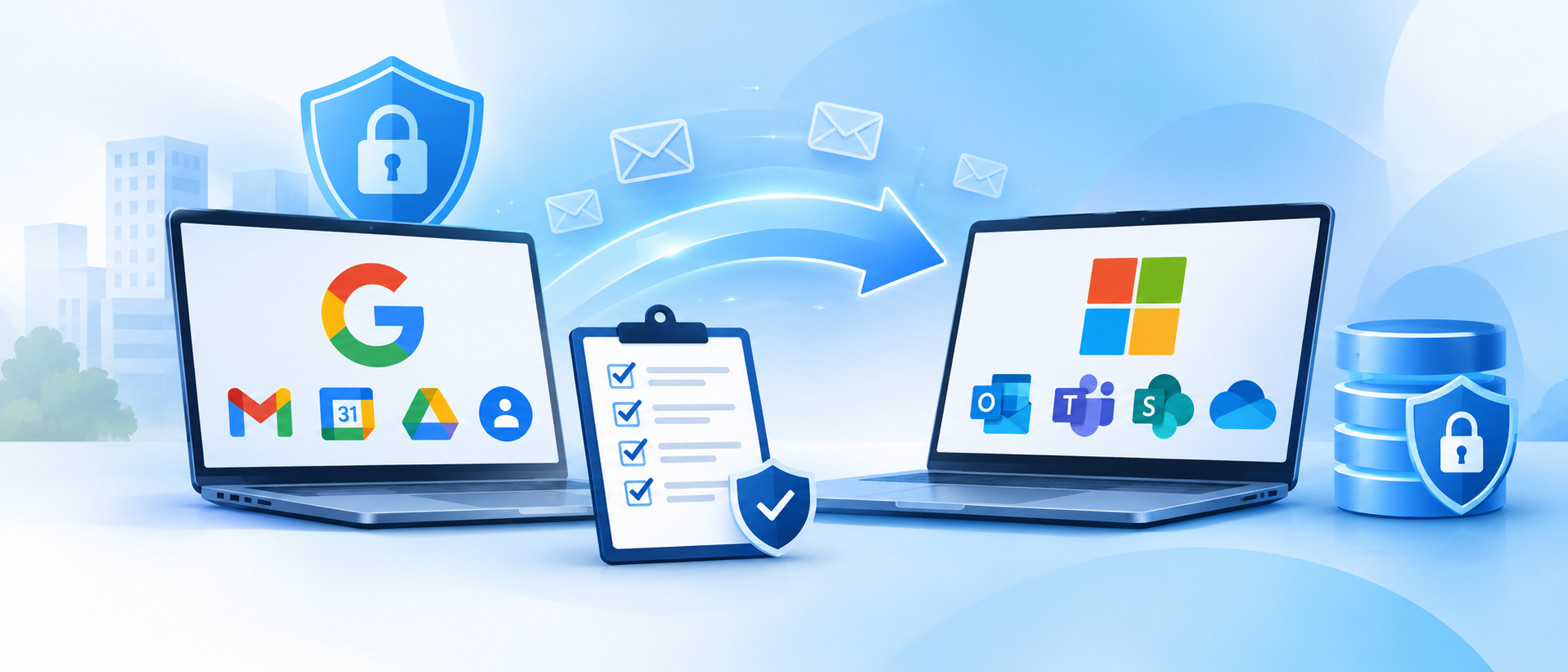
Email remains one of the most important communication tools for businesses. Companies use it to communicate with customers, exchange contracts, share confidential documents, manage internal operations, and maintain important business records.
As organisations grow, they may need to move their email infrastructure to a more reliable platform. This could involve migrating from an outdated email server to Microsoft 365, moving from Google Workspace to Microsoft 365, switching email hosting providers, or consolidating multiple business email environments into one platform.
However, email migration involves more than transferring messages from one mailbox to another. Businesses must also consider data security, mailbox backups, user permissions, email continuity, domain configuration, and the protection of sensitive information.
A poorly planned migration can result in missing emails, disrupted communication, incorrect configurations, security vulnerabilities, or unexpected downtime.
This is why following a structured Email Migration Checklist is important before, during, and after the migration process.
In this guide, we explain the essential steps businesses should follow to prepare for a secure email migration, protect their business data, minimise disruption, and ensure a smooth transition to the new email platform.
Whether your organisation is planning a Google Workspace migration, a Microsoft 365 email migration, or a move from an existing business email hosting provider, this checklist will help you understand what needs to be considered.
What Is Email Migration?
Email migration is the process of transferring business email accounts and associated mailbox data from one email platform, server, or hosting environment to another.
Businesses commonly migrate their email systems when they want better collaboration tools, improved security, more reliable infrastructure, easier administration, or a platform that can support future growth.
An email migration project may involve transferring:
- Business email accounts and mailboxes
- Existing emails and attachments
- Inbox and folder structures
- Sent and archived messages
- Contacts and address books
- Calendars and meeting information
- Distribution lists and shared mailboxes
- Email aliases and forwarding rules
- Mailbox permissions and delegation settings
- Domain and DNS configurations
For example, a company moving from Google Workspace to Microsoft 365 may need to transfer employee mailboxes, calendars, contacts, and other supported data while ensuring that employees can continue using their business email addresses.
The exact migration scope depends on the source and destination platforms, migration method, available tools, and business requirements.
For organisations handling large volumes of business communication, professional Email Migration Services can help plan and manage this process more effectively.
Why Do Businesses Need an Email Migration Checklist?
Email migration involves several technical and operational activities. Without proper planning, important tasks can be overlooked.
For example, a company may successfully transfer most employee emails but forget to configure shared mailboxes, update email authentication records, verify forwarding rules, or review user access permissions.
These issues can affect communication and expose the organisation to unnecessary risks.
An email migration checklist helps businesses:
- Reduce the risk of email and data loss.
- Protect confidential business information.
- Maintain email communication during the transition.
- Identify outdated or inactive email accounts.
- Verify mailbox backups before migration.
- Review security settings and user permissions.
- Configure the new email environment correctly.
- Test email delivery before switching over.
- Reduce disruption to employees and customers.
- Confirm that migrated data is accessible and complete.
A structured approach also makes it easier for IT teams, management, and migration specialists to understand their responsibilities throughout the project.
Complete Email Migration Checklist: Before, During, and After Migration
A successful migration should be divided into three main stages: pre-migration planning, migration execution, and post-migration verification.
Each stage has different responsibilities, and completing them in the correct order helps reduce avoidable problems.
Stage 1: Pre-Migration Checklist
The preparation stage is one of the most important parts of an email migration project. Before transferring any data, businesses should understand their existing email environment and identify what needs to be moved.
1. Identify Your Current Email Environment
Start by reviewing your existing email infrastructure.
Understand which platform currently hosts your business email accounts and how the organisation manages its communication systems.
Your current environment may include:
- Microsoft Exchange Server
- Microsoft 365
- Google Workspace
- cPanel or web hosting email
- IMAP-based email hosting
- Other cloud-based email services
- Third-party business email providers
You should also identify the email hosting provider, domain registrar, DNS management platform, and any third-party services connected to your email environment.
This information helps determine the most appropriate email migration method.
For example, moving from Google Workspace to Microsoft 365 may require a different migration approach from moving an on-premises Exchange Server to Exchange Online.
Checklist:
- Identify the current email hosting platform.
- Confirm the number of active email accounts.
- Identify the domain and DNS provider.
- Review existing email server configurations.
- Identify third-party applications connected to email.
- Document the current email environment.
2. Audit All Email Accounts and Mailboxes
Before starting an email migration, create a complete inventory of the organisation's email accounts.
Businesses often have more email accounts than they realise. These may include employee mailboxes, departmental accounts, shared mailboxes, former employee accounts, and service-related addresses.
For example:
- [email protected]
- [email protected]
- [email protected]
- [email protected]
- [email protected]
- [email protected]
Identify which accounts are actively used and which are no longer required.
Also review mailbox sizes, storage limits, archive folders, and account ownership.
This step is particularly important for organisations with a large number of employees or multiple departments.
Checklist:
- Prepare a list of all email accounts.
- Identify active and inactive users.
- Record mailbox sizes.
- Identify shared and departmental mailboxes.
- Review aliases and distribution lists.
- Identify archived or former employee mailboxes.
- Confirm which accounts need to be migrated.
3. Define the Email Migration Scope
Not every migration requires transferring the same types of data.
Some businesses only need to migrate email messages, while others need to move calendars, contacts, shared mailboxes, distribution lists, and additional collaboration data.
Clearly define what is included in the migration project.
For example, a business migrating to Microsoft 365 may need to consider:
- Exchange Online mailboxes
- Email messages and attachments
- Calendar appointments
- Contacts
- Shared mailboxes
- Distribution groups
- Mailbox delegation
- Email forwarding
- Archive data
It is also important to understand the limitations of the source and destination platforms. Some settings and application configurations may need to be recreated manually rather than transferred automatically.
Checklist:
- Define the data to be migrated.
- Confirm which historical emails must be retained.
- Identify shared mailbox requirements.
- Review calendar and contact migration requirements.
- Document forwarding and delegation settings.
- Identify data that may require manual recreation.
- Agree on the migration scope with stakeholders.
4. Create a Complete Email Backup
One of the most important items in an email migration checklist is creating a reliable backup of existing business email data.
Although migration tools are designed to transfer mailbox information, businesses should not treat the migration process itself as their only backup.
Unexpected errors, incorrect configurations, interrupted transfers, or user mistakes can affect data availability.
A separate backup provides an additional recovery option if something goes wrong.
Depending on the existing email platform and backup solution, businesses may need to protect:
- Email messages and attachments
- Contacts and calendars
- Archived mailboxes
- Shared mailbox information
- Important business correspondence
- Required retention records
For larger organisations, backup planning should also consider retention requirements, recovery time, access permissions, and restoration procedures.
Important: A backup is only useful if the organisation can restore the data when needed. Verify that the backup is complete and that the recovery process has been tested.
Checklist:
- Create a backup of important mailboxes.
- Include archived and shared mailbox data where required.
- Confirm that attachments and folders are included.
- Store backup data in an appropriate secure location.
- Restrict access to backup files.
- Verify backup completion.
- Test restoration where practical.
- Document the recovery procedure.
5. Review Data Security and Access Permissions
Business email accounts frequently contain confidential information, including customer details, financial documents, employee records, contracts, and internal discussions.
Before migration, review who has access to these accounts and how the information is protected.
Pay particular attention to:
- Administrator accounts
- Shared mailbox permissions
- Delegated access
- Former employee accounts
- External forwarding rules
- Application passwords
- Third-party integrations
- Multi-factor authentication settings
Remove unnecessary access and confirm that only authorised users can access sensitive mailboxes.
It is also important to use secure migration methods and restrict access to migration tools, credentials, and temporary data storage.
For organisations handling sensitive information, security and access requirements should be documented before the migration begins.
Checklist:
- Review administrator access.
- Check shared mailbox permissions.
- Remove unnecessary or outdated user access.
- Review external forwarding rules.
- Secure migration administrator accounts.
- Enable appropriate multi-factor authentication.
- Restrict access to backup and migration data.
- Document required security controls.
6. Check Domain and DNS Configuration
Domain and DNS configuration plays an important role in business email migration.
When an organisation changes its email provider, it may need to update DNS records so that incoming and outgoing messages are routed through the new platform.
Important DNS records include:
MX Records: Mail Exchange records identify the servers responsible for receiving email for a domain.
SPF Records: Sender Policy Framework records help identify which mail servers are authorised to send email on behalf of a domain.
DKIM Records: DomainKeys Identified Mail uses digital signatures to help receiving systems verify that messages were authorised and have not been modified in transit.
DMARC Records: Domain-based Message Authentication, Reporting and Conformance builds on SPF and DKIM to define how receiving systems should handle messages that fail authentication checks and provides reporting capabilities.
Incorrect DNS or email authentication configurations can affect email delivery and increase the risk of domain spoofing.
Do not simply copy old DNS records into the new environment without reviewing them. Confirm the correct values with the destination email provider and ensure that the records reflect the organisation's actual sending services.
Also review DNS propagation and plan the changeover carefully.
Checklist:
- Record existing DNS configurations.
- Identify the current MX records.
- Review SPF configuration.
- Identify DKIM requirements for the new platform.
- Review the DMARC policy.
- Confirm the correct DNS values with the destination provider.
- Plan the DNS changeover.
- Test inbound and outbound email delivery.
7. Choose the Right Email Migration Method
The migration method should match the organisation's existing email platform, number of mailboxes, data volume, technical requirements, and acceptable downtime.
Common email migration methods include:
IMAP Migration
IMAP migration is commonly used to transfer email messages and folder structures from supported IMAP-based email systems. However, it does not automatically transfer every type of mailbox information, such as calendars and contacts, in all migration scenarios.
Cutover Migration
A cutover migration moves an organisation's mailboxes from an existing Exchange environment to Microsoft 365 in a planned transition. It may be suitable for certain smaller or less complex environments, subject to platform requirements.
Hybrid Migration
A hybrid migration allows an organisation to operate an on-premises Exchange environment alongside Exchange Online during a transition. It can be appropriate for larger or more complex organisations that need a phased move.
Third-Party Migration Tools
Specialised migration tools can help transfer data between different email platforms and support more complex migration requirements. Their capabilities vary, so businesses should verify which data types, permissions, and configurations are supported.
The migration method should be selected after reviewing the source environment and destination platform rather than choosing a tool based only on convenience.
Microsoft provides guidance on email migration methods and migration performance best practices.
Checklist:
- Evaluate available migration methods.
- Confirm source and destination compatibility.
- Review supported data types.
- Consider mailbox size and migration volume.
- Assess network and infrastructure requirements.
- Identify any migration tool limitations.
- Select the appropriate migration approach.
8. Plan the Migration Schedule and Communication
Email is a business-critical service. Even a short interruption can affect customer communication, sales enquiries, internal coordination, and daily operations.
Prepare a migration schedule that takes business activities into account.
For example, an organisation may choose to migrate departments in phases rather than moving every mailbox at the same time.
Before migration, inform employees about:
- The migration date and expected timeline
- Any temporary service interruptions
- Whether they need to sign in again
- Changes to email access or applications
- How to report missing emails or access issues
- Whom to contact for technical assistance
The IT team should also identify critical users and departments that require additional support.
Checklist:
- Select a suitable migration window.
- Prepare a migration timeline.
- Identify critical departments.
- Inform employees and stakeholders.
- Assign migration responsibilities.
- Prepare a technical support contact.
- Define an escalation process.
Stage 2: Email Migration Execution Checklist
Once planning and preparation are complete, the organisation can begin the actual migration.
This stage requires careful monitoring to ensure that data is transferred correctly and that users experience minimal disruption.
9. Perform a Pilot Migration
Before migrating every mailbox, conduct a pilot migration with a small group of users.
This allows the technical team to test the migration process and identify potential problems before the full rollout.
Choose users with different mailbox sizes and usage patterns. Include a combination of standard mailboxes, users with large archives, and any relevant shared mailbox scenarios.
During the pilot, verify:
- Email messages and attachments
- Folder structures
- Calendar information
- Contacts
- Shared mailbox access
- Email sending and receiving
- Outlook or mobile application access
- User permissions
A successful pilot provides valuable information about migration performance and helps the team refine the rollout plan.
Checklist:
- Select pilot users.
- Migrate sample mailboxes.
- Verify transferred messages and attachments.
- Test calendars and contacts.
- Check permissions and shared mailboxes.
- Test email delivery.
- Record errors and resolve issues.
- Approve the full migration only after validation.
10. Protect Data During the Migration
During the migration process, businesses should ensure that email data remains protected.
Use authorised migration tools and secure administrative access. Avoid transferring confidential mailbox data through unsecured storage locations or unmanaged devices.
The technical team should monitor the migration environment and ensure that temporary files, credentials, and exported mailbox data are handled appropriately.
For large migrations, the team should also consider the performance limitations of the source system, network stability, mailbox sizes, and provider throttling.
Microsoft's migration guidance explains that factors such as data source performance, network stability, mailbox characteristics, and service throttling can influence migration speed.
Checklist:
- Use authorised migration tools.
- Protect administrator credentials.
- Secure temporary migration files.
- Monitor migration activity.
- Review migration errors and failed items.
- Avoid unnecessary changes to source mailboxes.
- Maintain access controls throughout the process.
11. Monitor Migration Progress
Do not assume that a migration has completed successfully just because the migration tool shows that the process has started or reached completion.
Monitor the migration dashboard and review mailbox-level results.
Look for:
- Failed mailbox migrations
- Incomplete data transfers
- Skipped or unsupported items
- Duplicate messages
- Missing folders
- Attachment issues
- Unexpected permission changes
- Migration errors
Keep a record of any issues and the actions taken to resolve them.
For larger organisations, migration progress reports should be shared with the relevant IT team and project stakeholders.
Checklist:
- Monitor migration progress.
- Review mailbox-level status.
- Identify failed or incomplete migrations.
- Investigate skipped items.
- Record errors and resolutions.
- Communicate progress to stakeholders.
- Confirm completion for each migration batch.
Stage 3: Post-Migration Checklist
Completing the data transfer is not the final step.
The new email environment must be tested to confirm that employees can access their accounts, messages are delivered correctly, security controls are active, and important business information is available.
12. Verify Migrated Emails and Mailbox Data
After migration, compare the source and destination mailboxes.
Check that important messages, folders, attachments, and historical correspondence are available.
Do not rely only on the total mailbox size to confirm data accuracy. A mailbox may appear to have transferred successfully while some items remain missing or unsupported.
Review a sample of mailboxes and investigate any differences.
Where possible, use migration reports and reconciliation tools to identify incomplete transfers.
Checklist:
- Verify mailbox access.
- Check inbox and sent items.
- Review archived messages.
- Verify folder structures.
- Check important attachments.
- Confirm calendar and contact availability.
- Review migration reports.
- Resolve missing or incomplete items.
13. Test Email Sending and Receiving
Email delivery should be tested from multiple perspectives.
Send and receive test messages using internal and external email addresses. Confirm that messages are delivered correctly and are not unnecessarily marked as spam.
Also test:
- Messages sent from employee accounts
- Incoming messages from external domains
- Replies to existing email conversations
- Attachments
- Shared mailbox communication
- Distribution groups
- Automated notifications
- Email forwarding where required
If delivery problems occur, review DNS records, authentication configuration, mail routing, and platform-specific settings.
Checklist:
- Test internal email communication.
- Test external email delivery.
- Verify incoming and outgoing messages.
- Test attachments.
- Check shared mailboxes.
- Test distribution lists.
- Review spam and quarantine behaviour.
- Investigate delivery errors.
14. Reconfigure Email Clients and Mobile Devices
Employees may use different devices and applications to access business email.
After migration, some users may need to sign in again or update their account settings.
Review access from:
- Microsoft Outlook desktop
- Outlook on the web
- Mobile email applications
- Smartphones and tablets
- Shared office computers
- Approved third-party applications
Confirm that users can access their mailboxes and that their devices are using the correct authentication and security settings.
Checklist:
- Test Outlook desktop access.
- Verify webmail access.
- Reconfigure mobile devices where required.
- Check shared device access.
- Confirm multi-factor authentication.
- Remove outdated account configurations.
- Provide user support for login issues.
15. Review Email Security After Migration
A new email platform does not automatically guarantee that every security setting is configured correctly.
Review the destination environment to ensure that appropriate security controls are enabled.
Important areas include:
Multi-Factor Authentication (MFA): Require additional verification for user accounts, especially privileged administrator accounts, to reduce the risk of unauthorised access.
Anti-Phishing Protection: Review protection against impersonation, suspicious links, malicious attachments, and business email compromise.
Spam and Malware Filtering: Confirm that the platform's email filtering and threat protection features are appropriately configured.
Email Authentication: Verify SPF, DKIM, and DMARC configuration for the domain and its authorised sending services.
Access Policies: Review sign-in controls, administrator roles, mailbox permissions, and external access.
Audit and Monitoring: Ensure that relevant activity logging and security alerts are available to the IT team.
Security configurations vary by platform and subscription. Businesses should review the controls available in their chosen email service and configure them according to their risk requirements.
For further guidance, refer to the Cybersecurity and Infrastructure Security Agency's phishing guidance and the relevant security documentation from the email provider.
Checklist:
- Enable appropriate MFA requirements.
- Review administrator roles.
- Configure anti-phishing protection.
- Verify spam and malware filtering.
- Validate SPF, DKIM, and DMARC.
- Review external forwarding settings.
- Enable relevant audit and security monitoring.
- Remove temporary migration access when no longer required.
16. Retain Backups and Confirm Data Recovery
Once the new email platform is working correctly, review the backup and retention strategy.
Businesses should not assume that the email provider's built-in availability or retention features automatically meet every backup and recovery requirement.
Depending on business needs, a separate email backup solution may be appropriate.
Consider:
- How frequently email data is backed up
- How long backups are retained
- Who can access backup data
- How quickly information can be restored
- Whether individual messages and complete mailboxes can be recovered
- How backup data is protected
- Whether retention policies meet applicable business and regulatory requirements
Also decide how long the organisation needs to retain the old email environment.
Do not shut down the previous email platform immediately after migration. First confirm that the required data has been transferred, validated, backed up, and made accessible.
Checklist:
- Confirm the backup strategy for the new platform.
- Verify backup completion.
- Test restoration procedures.
- Review retention requirements.
- Confirm access to historical records.
- Document the old platform's shutdown plan.
- Decommission the previous environment only after approval.
17. Train Employees and Provide Post-Migration Support
Employees may need help adjusting to a new email platform.
Even when the migration is technically successful, users can experience difficulties with login procedures, mailbox layouts, mobile access, shared calendars, and new collaboration features.
Provide clear instructions and a support channel for employees.
A short training session or internal guide can help users understand how to access their new mailboxes, manage folders, use calendars, and report technical problems.
Continue monitoring the environment after migration to identify issues that may not appear during initial testing.
Checklist:
- Share new email access instructions.
- Provide employee guidance.
- Explain important platform changes.
- Offer technical support.
- Monitor post-migration issues.
- Document lessons learned.
Common Email Migration Risks Businesses Should Avoid
Even with a detailed checklist, businesses should understand the common risks that can affect an email migration.
1. Data Loss During Migration
Missing messages, attachments, folders, or archived information can affect business operations.
How to reduce the risk: Create verified backups, define the migration scope, perform pilot migrations, and review migration reports.
2. Email Downtime
Unexpected service interruptions can prevent employees from sending or receiving business communication.
How to reduce the risk: Plan the migration window, communicate with users, test DNS changes, and prepare a rollback or recovery procedure where appropriate.
3. Incorrect DNS Configuration
Incorrect MX, SPF, DKIM, or DMARC records can cause email delivery and authentication problems.
How to reduce the risk: Document existing records, follow the destination provider's instructions, and test email delivery after changes.
4. Security Misconfigurations
A new email environment may have weak access controls, incomplete MFA coverage, or inappropriate forwarding permissions.
How to reduce the risk: Review security settings before and after migration and remove unnecessary access.
5. Incomplete Mailbox Migration
Some migration methods do not support every type of data or configuration.
How to reduce the risk: Confirm migration tool capabilities and verify messages, calendars, contacts, permissions, and other required items separately.
6. Poor Employee Communication
Employees may not know when the migration will happen or how to access their accounts afterward.
How to reduce the risk: Provide advance notice, clear instructions, and a dedicated support contact.
Email Migration to Microsoft 365: What Businesses Should Check
Microsoft 365 is a common destination for organisations looking to combine business email with productivity and collaboration tools.
However, migrating to Microsoft 365 requires more than creating user accounts and transferring messages.
Businesses should review the following areas:
- Microsoft 365 tenant readiness
- User and mailbox provisioning
- Domain verification
- Exchange Online configuration
- Migration method selection
- Mailbox and archive transfer
- Calendar and contact migration
- Shared mailboxes and distribution groups
- MX, SPF, DKIM, and DMARC configuration
- Multi-factor authentication
- Security and compliance requirements
- Outlook and mobile device configuration
- Backup and retention strategy
The exact process depends on the source platform and the type of Microsoft 365 migration being performed.
For example, a migration from Google Workspace to Microsoft 365 may require different preparation and data-mapping steps from a migration between two Microsoft 365 tenants.
Businesses should review Microsoft's official guidance before selecting a migration approach:
Microsoft Learn: Email migration performance and best practices
Google Workspace to Microsoft 365 Migration: Important Considerations
Businesses planning a Google Workspace to Microsoft 365 migration should carefully consider data mapping, mailbox compatibility, security settings, and differences between the two platforms. Although both platforms provide business email and collaboration tools, their data structures, administrative settings, and migration requirements are not identical. To understand the complete transition process, read our detailed guide on Google Workspace to Microsoft 365 Migration, which covers the key preparation steps, migration process, and important considerations. For a practical walkthrough of transferring business emails while protecting important mailbox data and minimising disruption, read our guide on Migrate Business Emails to Microsoft 365.
Before starting the migration, review the following elements:
- Gmail mailbox data
- Google Calendar information
- Contacts
- Shared or delegated access requirements
- Google Groups and distribution requirements
- Email aliases
- Folder and label handling
- User account mapping
- Domain and DNS changes
- Microsoft 365 mailbox provisioning
- Post-migration user access
Some configurations may need to be recreated in Microsoft 365 rather than transferred directly.
It is also important to test the migration with a small group of users before moving the entire organisation.
Google provides official guidance on Google Workspace migration best practices, which can help administrators understand preparation, system requirements, and migration planning.
For businesses planning this transition, following a structured migration strategy can help reduce operational disruption, protect important business data, and improve the overall migration experience.
Should Businesses Handle Email Migration In-House or Hire Professional Email Migration Services?
The right approach depends on the size of the organisation, technical complexity, available IT resources, and the importance of uninterrupted email communication.
A small business with a limited number of mailboxes and straightforward requirements may be able to complete a basic migration using supported tools and internal IT resources.
However, larger organisations or businesses with complex email environments may need specialist assistance.
Professional email migration services can be particularly useful when a project involves:
- A large number of employee mailboxes
- Complex Microsoft Exchange environments
- Google Workspace to Microsoft 365 migration
- Multiple domains or email tenants
- Large archives and historical data
- Shared mailbox and permission requirements
- Business-critical email systems
- Strict security and data retention requirements
- Limited tolerance for downtime
An experienced migration partner can help assess the existing environment, choose the appropriate migration method, plan the data transfer, coordinate the changeover, and validate the destination environment.
The objective is not simply to move email accounts. It is to ensure that the organisation can continue communicating and accessing important business information after the transition.
How Professional Email Migration Services Help Businesses
Professional email migration involves technical planning, data protection, platform configuration, testing, and ongoing support.
An experienced service provider can help businesses manage these activities through a structured process.
Email Migration Assessment
The process begins with reviewing the existing email infrastructure, mailbox inventory, data volume, business requirements, and destination platform.
Migration Planning
The migration team identifies the appropriate migration method, required tools, project timeline, data scope, and potential risks.
Data Backup and Preparation
Important mailbox data is backed up where required, and the migration environment is prepared for the transfer.
Secure Mailbox Migration
Emails and other supported data are migrated using an appropriate method while the team monitors progress and resolves migration errors.
Domain and Email Configuration
The destination email platform is configured, including relevant domain, DNS, routing, and authentication settings.
Testing and Validation
Migrated mailboxes are checked, email delivery is tested, and user access is verified.
Post-Migration Support
The team helps address remaining issues, supports users, and confirms that the new email environment is operating as expected.
For organisations planning an email platform change, Spectrum Future Tech's Email Migration Services can be considered as part of a structured migration strategy.
Final Thoughts
Email migration is an important technology transition, and businesses should approach it with careful planning rather than treating it as a simple mailbox transfer.
A successful migration requires attention to data backup, security, DNS configuration, user permissions, email continuity, and post-migration validation.
Following a complete Email Migration Checklist helps organisations identify potential risks before they affect business operations. It also provides a clear framework for managing the migration process from initial assessment to final verification.
Whether your organisation is moving to Microsoft 365, switching from Google Workspace, or upgrading an existing business email environment, the priority should be to protect important information and maintain reliable communication throughout the transition.
If your business is planning an email migration, working with an experienced migration partner can help simplify the process, reduce avoidable risks, and ensure that the new email environment is ready for everyday business use.
Frequently Asked Questions (FAQs)
1. What should be included in an email migration checklist?
An email migration checklist should include email account auditing, migration scope, data backup, security reviews, DNS configuration, migration method selection, pilot testing, mailbox transfer, email delivery testing, and post-migration verification.
2. How do I prevent data loss during email migration?
To reduce the risk of data loss, create a verified backup before migration, identify all required mailbox data, perform a pilot migration, monitor migration reports, and compare source and destination mailboxes after the transfer.
3. Do I need to back up emails before migration?
Yes. A separate backup is an important safeguard before migrating business emails. It provides an additional recovery option if migration errors, incomplete transfers, or unexpected issues occur.
4. How long does an email migration take?
The timeline depends on the number of mailboxes, mailbox sizes, source and destination platforms, network conditions, migration method, and data volume. A small migration may be relatively straightforward, while a large enterprise migration may require phased planning and multiple migration passes.
5. Can I migrate emails from Google Workspace to Microsoft 365?
Yes. Businesses can migrate supported Gmail mailbox data and other supported information to Microsoft 365 using appropriate migration methods and tools. The exact scope and process depend on the source environment and migration requirements.
6. Will employees lose access to emails during migration?
Not necessarily. The migration approach can be planned to minimise disruption, but some changes or temporary interruptions may occur depending on the platforms and cutover method. Businesses should communicate the migration schedule and test access before the final transition.
7. What happens to email attachments during migration?
Attachments can generally be transferred as part of supported mailbox migration processes. However, businesses should verify that attachments are included in the selected migration method and check important messages after migration.
8. What are SPF, DKIM, and DMARC, and why are they important during email migration?
SPF, DKIM, and DMARC are email authentication mechanisms that help receiving systems evaluate whether messages are authorised and properly authenticated. They should be reviewed and configured for the new email environment to help protect the business domain from spoofing and email impersonation.
9. Should I keep my old email server after migration?
Do not decommission the old environment immediately. First confirm that required data has been migrated, validated, backed up, and made accessible. The appropriate retention and shutdown timeline depends on business, legal, and technical requirements.
10. Should I hire professional email migration services?
Professional email migration services can be useful when a business has many mailboxes, complex infrastructure, multiple domains, large archives, strict security requirements, or limited tolerance for downtime. A specialist can help plan, execute, test, and validate the migration.
11. What is the difference between email migration and email backup?
Email migration transfers mailbox data from one platform or environment to another. Email backup creates a separate copy of email data that can be retained and restored when needed. Migration and backup serve different purposes, and businesses may need both.
12. What should I check after email migration is complete?
After migration, verify mailbox contents, folders, attachments, calendars, contacts, shared mailbox access, email sending and receiving, DNS records, authentication settings, security controls, and backup procedures. Also confirm that employees can access their accounts from their approved devices.